You can reinstall your OS over IPMI at three in the morning without opening a ticket. Here is the order of operations, and the three places it usually goes wrong.
Every dedicated machine ships with IPMI / out-of-band access, reachable from your client area. It is an independent little computer on the motherboard: it works when the server is powered off, when the OS will not boot, and when your firewall rule locked you out. Power cycling, mounting an ISO and reinstalling the OS are all yours to do, at any hour, without opening a ticket.
Before you start
- Copy anything you need off the machine first. A reinstall wipes the system drive, and there is no undo. On a storage node the data array is separate from the 240 GB OS SSD, but verify what your partition layout actually is rather than assuming.
- Have the IPMI credentials to hand, from your client area. If they are missing or rejected, open a ticket — do not start a reinstall you cannot supervise.
- Prefer a netinstall ISO. Virtual media streams the image from your workstation over the network to the server's BMC; it is slow. A 60 MB Debian netinst boots in a minute where a 5 GB full ISO can take the better part of an hour.
1. Reach the console
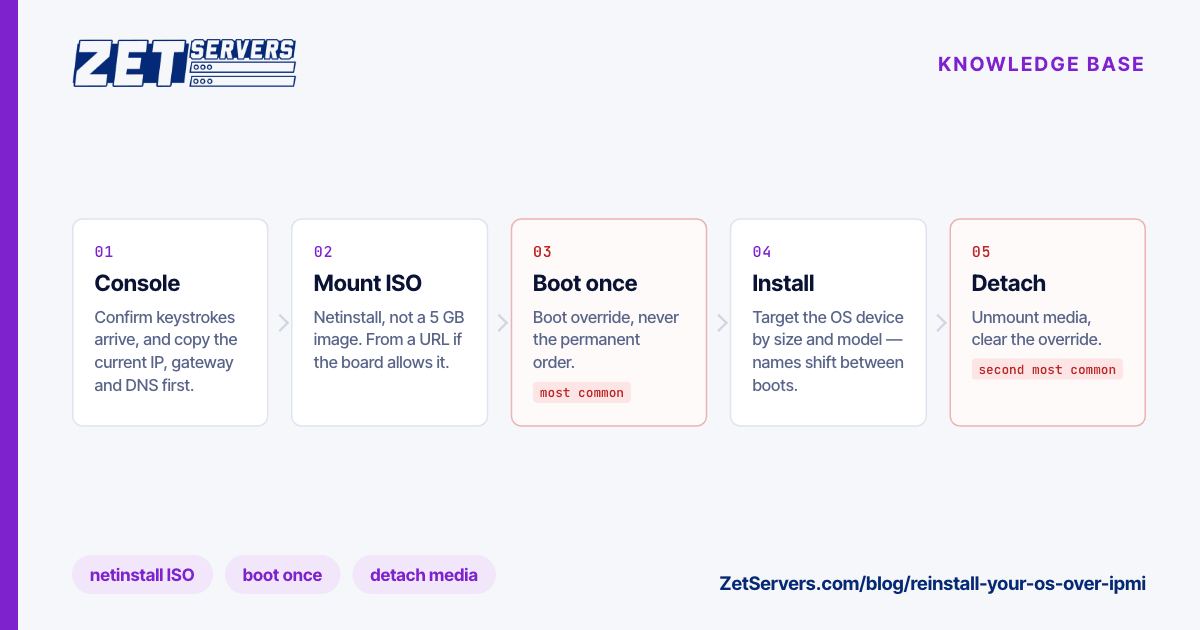
Log in to the IPMI web interface and open the remote console (labelled iKVM, Virtual Console, iDRAC console or iLO Remote Console depending on the board). Modern boards serve an HTML5 console; older ones offer a Java client and will make you edit a security exception. Confirm you can see the current screen and that your keystrokes arrive before you go further — a console that only paints is a console you cannot install from.
Take a note of the current network configuration while the machine is still up:
ip -br addr
ip route
cat /etc/resolv.conf
You will need the address, gateway and prefix during the install, and after the wipe there is nowhere to look them up.
2. Mount the ISO
In the console's virtual media menu, attach your ISO image as a virtual CD/DVD. Two things bite here:
- Some boards mount from a URL or an SMB share instead of your local disk. A URL is faster and does not depend on your workstation staying online for the whole install.
- The mount lives with the console session. If your laptop sleeps or the browser tab closes mid-install, the virtual drive vanishes and the installer stalls on a missing file. Keep the session open until the installer has finished copying.
3. Boot from it, once
Set the one-time boot device — "Boot Override", "Boot Once", or the equivalent on your board — rather than editing the permanent boot order. Then power-cycle from the IPMI power menu.
This is the single most common way a reinstall goes wrong: a permanent boot-order change that nobody undoes leaves the machine booting the installer forever, and it looks exactly like a dead server from the outside.
If the board offers no one-time option, change the order, but write yourself a note to change it back.
4. Install
Nothing special here — it is the same installer you would run locally, driven through a slightly laggy console. Three things to get right while you are in it:
- Network. If the install is not picking up an address by DHCP, enter the values you copied in step 1. Getting this wrong means finishing the install and finding the machine unreachable.
- Partitioning. Confirm the installer is targeting the OS device, not your data array. Device names shift between boots; match on size and model, not on
/dev/sda.
- SSH. Install the OpenSSH server, and add your public key during the install if the installer allows it.
5. Detach, verify, re-secure
When the installer asks to reboot:
- Unmount the virtual media and clear any one-time boot override. Skipping this is the second most common failure — the machine reboots into the installer again and you are back to step 3.
- Watch the boot in the console until you get a login prompt. That is your proof it boots without the console being involved.
- Log in over SSH from your own machine, then close the console.
- Harden it before it does anything else: how to secure a new dedicated server is the fifteen-minute version — a real user, key-only SSH, a default-deny firewall, automatic updates.
Frequently asked questions
Is IPMI safe to expose to the internet?
Treat the BMC as a device that must never be publicly reachable. BMC firmware is patched slowly and has a long history of authentication bugs. Reach it through the access your client area provides, restrict it to known addresses where you can, and never reuse a password with it.
The console is blank but the server is powered on.
Usually a display that has gone to sleep or a console session that is stale: send a key, or close and reopen the console. If it stays blank through a power cycle, capture what you see and open a ticket — that pattern can mean the machine is not POSTing, which is a hardware question.
My VPS does not have IPMI. What is the equivalent?
VPS instances use the VNC console in the client area. You can upload your own ISO and install over it the same way, and standard Linux templates are available if you would rather not.
Can I reinstall without touching the console at all?
If a template-based reinstall is offered for your product in the client area, that is the faster path. IPMI is what you use for a custom ISO, a non-standard partition layout, or when the machine will not boot.
Next steps
After the reinstall, confirm the network is delivering what it should — how to verify your port speed — and secure the machine before you put anything on it. More material lives in the knowledge base.