Two machines and one tool are enough to verify your port speed properly. What follows is the measurement, the kernel settings that decide whether it is honest, and the traps that make a fast link read slow.
Before you start
You need the server's IP, a root password or key, and an SSH client. Everything below assumes a fresh Debian or Ubuntu install.
Check the physical link before you measure anything through it. A port that negotiated the wrong speed explains a bad result instantly and costs one command:
ethtool eth0 | grep -E 'Speed|Duplex|Link detected'
If that says 1000Mb/s on a machine you bought as 10 Gbps, stop — the problem is the link, not your tuning, and it is a support ticket rather than a sysctl.
1. Confirm the port speed you were given
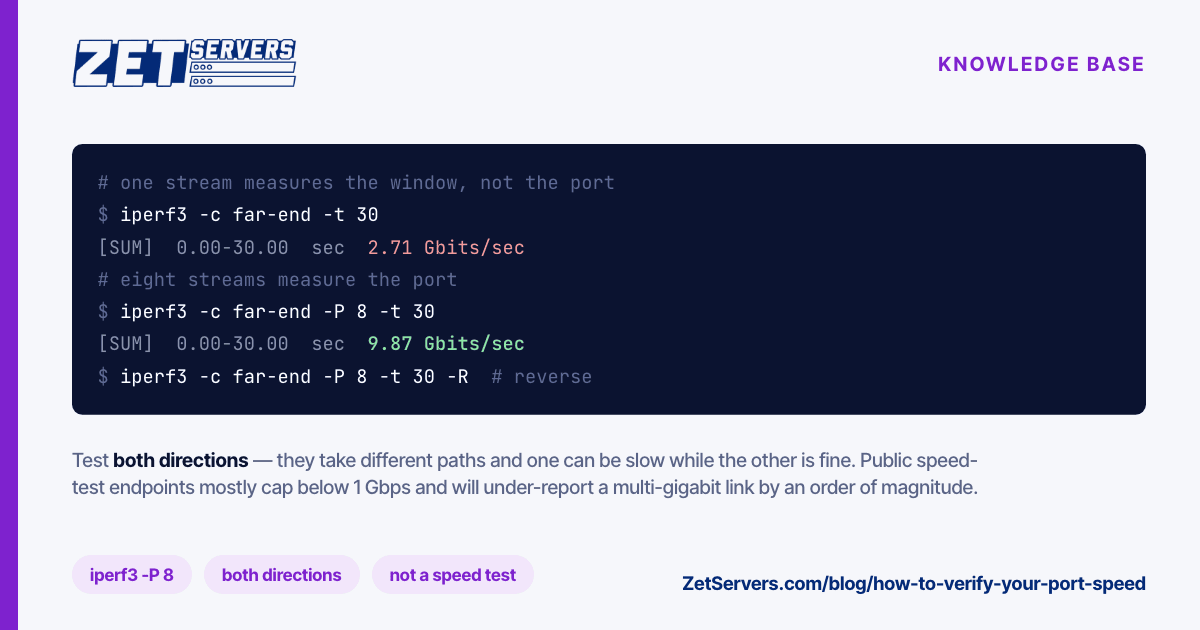
Measure between two machines you control — your new server and a second host on a well-connected network. iperf3 is the right tool for this because it measures the link itself, not a web server's ability to keep up with it.
# on the far-end host
iperf3 -s

# on the server you are testing
iperf3 -c <far-end-ip> -P 8 -t 30       # your server -> far end
iperf3 -c <far-end-ip> -P 8 -t 30 -R    # the reverse direction
Test both directions. They use different paths across the internet and one can be slow while the other is fine.
If HTTP is all you have, make your own test file on the far end and pull it:
# far-end host, once
fallocate -l 1G /var/www/html/1G.test

# on the server you are testing
curl -o /dev/null -w '%{speed_download}\n' http://<far-end-host>/1G.test
speed_download is bytes per second — divide by 125000 to read it as Mbit/s. A 10 Gbps port sustains far more than any single stream can pull, so use several in parallel (-P 8 above, or several curls at once) before concluding anything.
Do not use public speed-test websites for this. Most endpoints cap below 1 Gbps and will under-report a multi-gigabit link by an order of magnitude.
2. Read the output, not just the last line
The summary figure is the least interesting part of an iperf3 run. Two columns tell you why it is what it is.
Retr counts TCP retransmissions on the sending side. A handful across a 30-second run is normal. Thousands means the path is dropping packets, and no amount of local tuning fixes that — it is a network problem to be localised, not a server problem to be configured.
Cwnd is the congestion window, shown per interval. Watch whether it climbs and stays high, or climbs and collapses repeatedly. A sawtooth is loss-driven congestion control doing its job on a lossy path; a window that never grows at all points at a buffer ceiling on one of the two hosts.
For the live view of a single connection while a transfer runs:
ss -ti | grep -A1 <far-end-ip> # rtt, cwnd, retrans, delivery rate
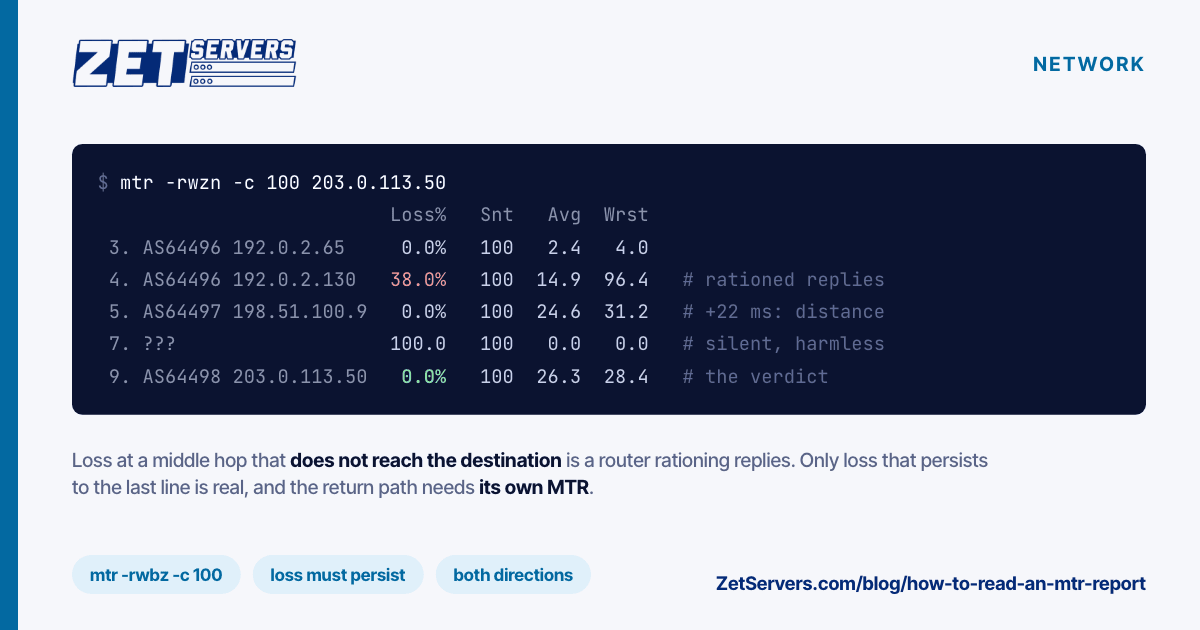
If the numbers say loss rather than limits, stop tuning and look at the path — mtr -rwzc 100 <far-end-ip> shows where it starts, and the forward and return paths are different, so run it from both ends before blaming either.
3. Raise the defaults that cap a fast link
The stock TCP buffers on a stock kernel are sized for a 1 Gbps world.
| Setting |
Common default |
Suggested on 10 Gbps+ |
net.core.rmem_max |
212992 |
67108864 |
net.core.wmem_max |
212992 |
67108864 |
net.ipv4.tcp_congestion_control |
cubic |
bbr |
net.core.default_qdisc |
pfifo_fast |
fq |
Read your own values first — distributions ship different numbers — then apply and persist in one step rather than with sysctl -w, which does not survive a reboot:
cat >/etc/sysctl.d/99-net.conf <<'EOF'
net.core.rmem_max = 67108864
net.core.wmem_max = 67108864
net.core.default_qdisc = fq
net.ipv4.tcp_congestion_control = bbr
EOF
sysctl --system
fq belongs with BBR rather than being optional beside it: BBR paces its sends and needs a queueing discipline that can pace. Setting the congestion control alone gets you a fraction of the benefit.
4. Test at a realistic distance
A local test tells you the port is wired correctly. It tells you nothing about the users you are tuning for, because a single connection carries only window ÷ round-trip time — and at 1 ms in the same facility, almost any window is enough.
Run at least two measurements: one in-region, and one against a host far enough away to have a real round trip. If the in-region number is line rate and the distant one is a tenth of it, the port is fine and the window is the constraint. If both are low, look at the link and the path.
Why a result comes back wrong
Before concluding the port is slow, rule these out in order:
- One stream. A single TCP connection is limited by window and latency, not by your port. Parallel streams are the only honest way to measure a multi-gigabit link.
- The far end. Your test is a measurement of the slower of the two machines and everything between them. A far-end host on a 1 Gbps connection caps you at 1 Gbps no matter what you own.
- CPU. At 10 Gbps and above, one core taking every interrupt becomes the ceiling.
mpstat -P ALL 1 during a run shows whether a single core is pinned while the rest idle.
- Disk, if you used the HTTP method. Reading a 1 GB file from a spinning disk caps the test at the drive's throughput. Serve the file from a tmpfs, or use iperf3, which touches no storage at all.
Frequently asked questions
Why is a single download slower than my port speed?
One TCP stream is limited by latency and window size, not by your port. Parallel streams are the only honest way to measure a multi-gigabit link.
Do I need to ask before saturating the port?
No. The port is unmetered and guaranteed — running it flat out is the product, not an exception. See what unmetered bandwidth actually means.
Should I test with UDP instead?
iperf3 -u -b 10G is useful for one specific job: proving the path can carry a rate without TCP's congestion control in the way. It will happily report loss that TCP would have hidden by slowing down. Use it to diagnose, not to certify — real traffic is TCP, and TCP's number is the one your users experience.
How often should I re-test?
Once at handover, so you have a baseline, and again whenever performance changes. A baseline taken on a working day is what turns "it feels slow" into a number you can put in a ticket.
Next steps
Establish the baseline at handover and keep it. If the measurement lands below the tier you expected, the remaining variable is usually the path rather than the box — peering vs transit covers how to read it. If the tier itself is the problem, how much bandwidth do you actually need works out the right one from your peak.